Editor V2: build a grille step by step
Start with a simple grille and add advanced features only when you need them. The core workflow stays the same: setup → sections and bars → harmony → save.
Guide · Editor V2
Set up the grille
Open Grille settings and choose the song and version, instrument, tuning, time signature, tempo and default rhythm pattern. A new grille intentionally starts with an empty first bar.
💡 Instrument and tuning determine the available voicings. If you do not need a specific shape, the editor can keep the chord with automatic voicing.
Create sections and bars
Use + Section to add song parts and + Bar to build their length. Bars can be copied, duplicated, moved or deleted.
Place chords on the time grid
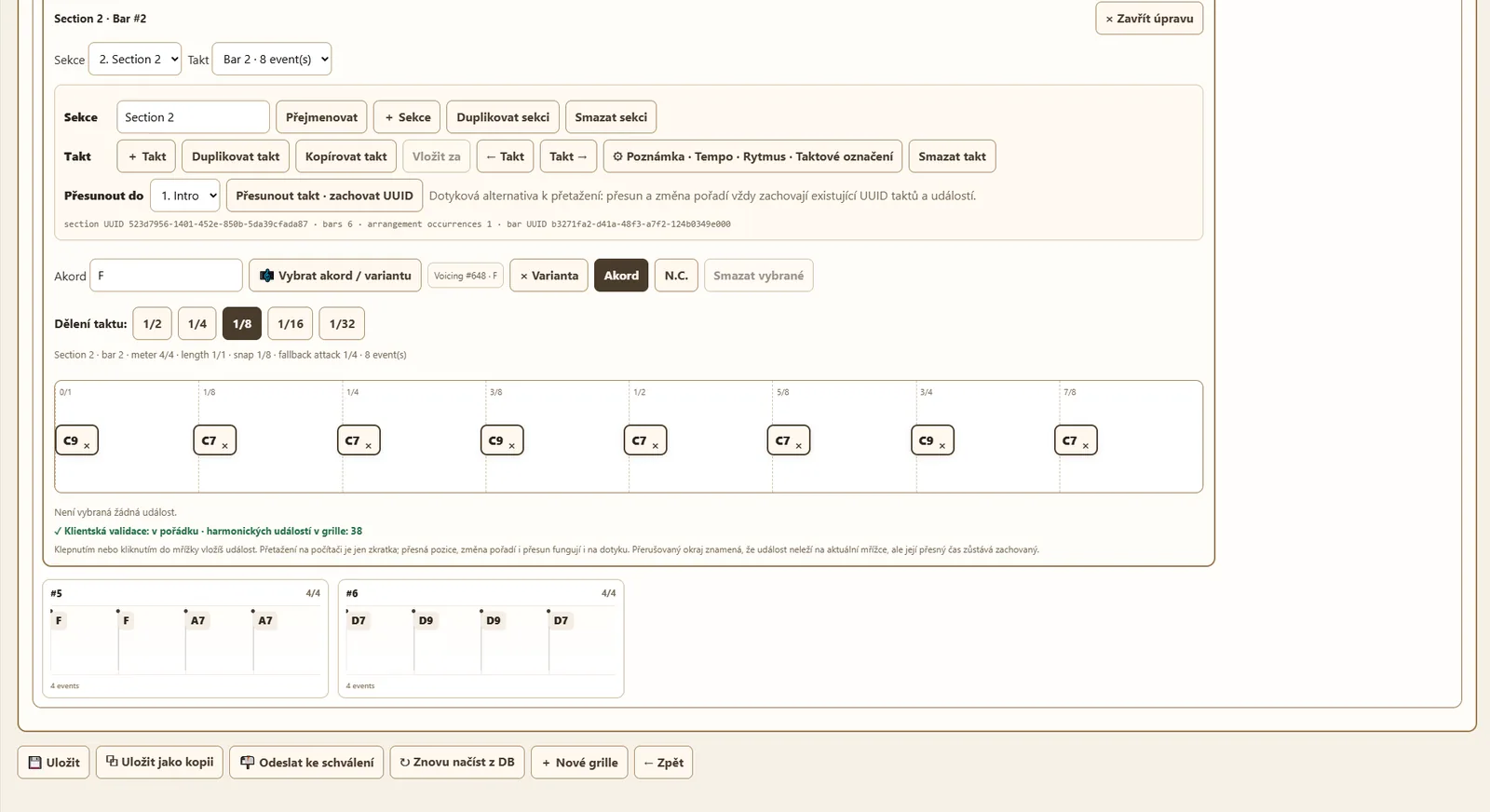
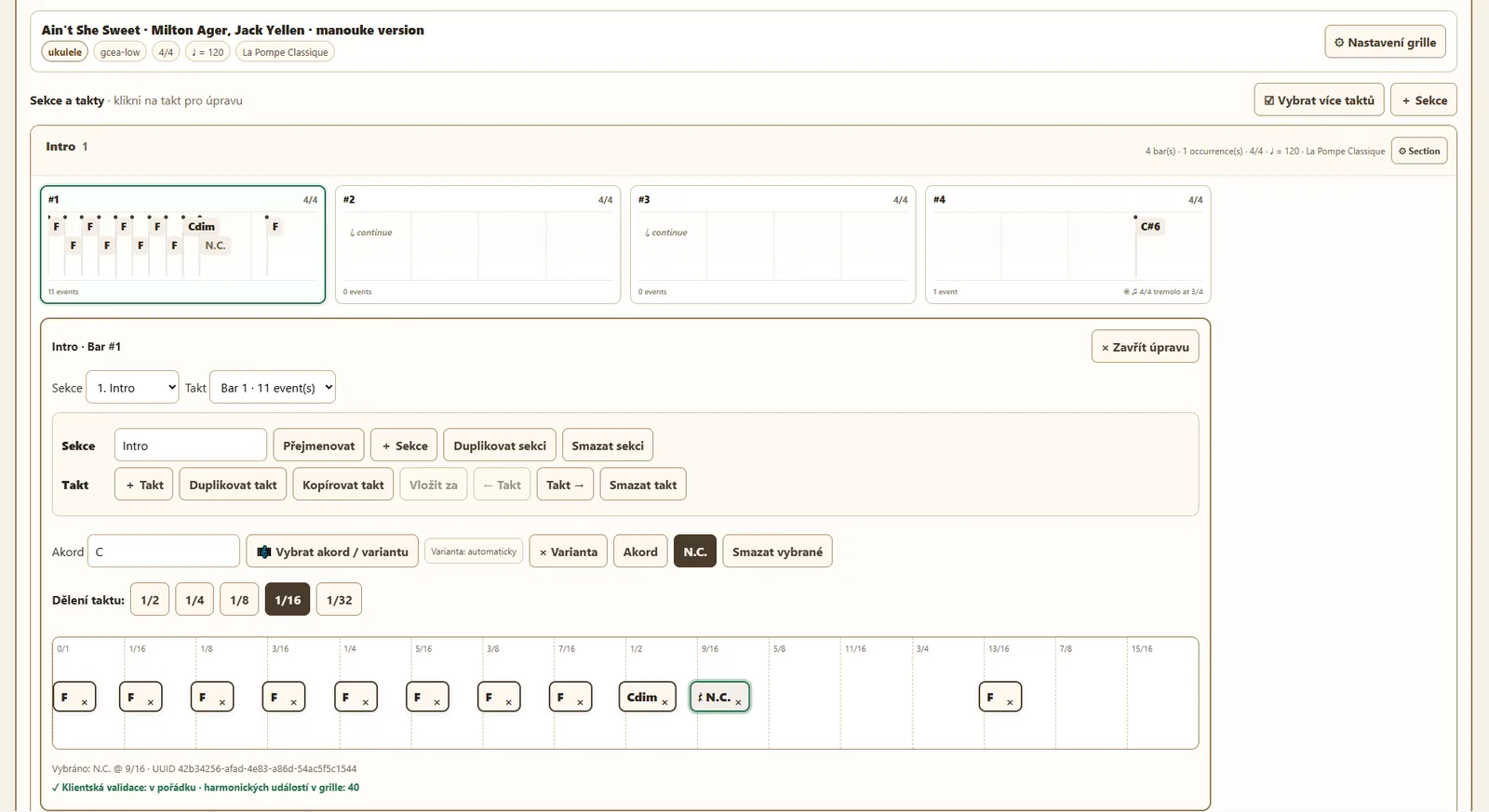
Open a bar and choose Snap. 1/2 is enough for two chords, 1/4 for quarter-note positions; 1/8, 1/16 and 1/32 are available for finer placement. N.C. inserts a no-chord event.
Choose a chord and, if needed, a voicing
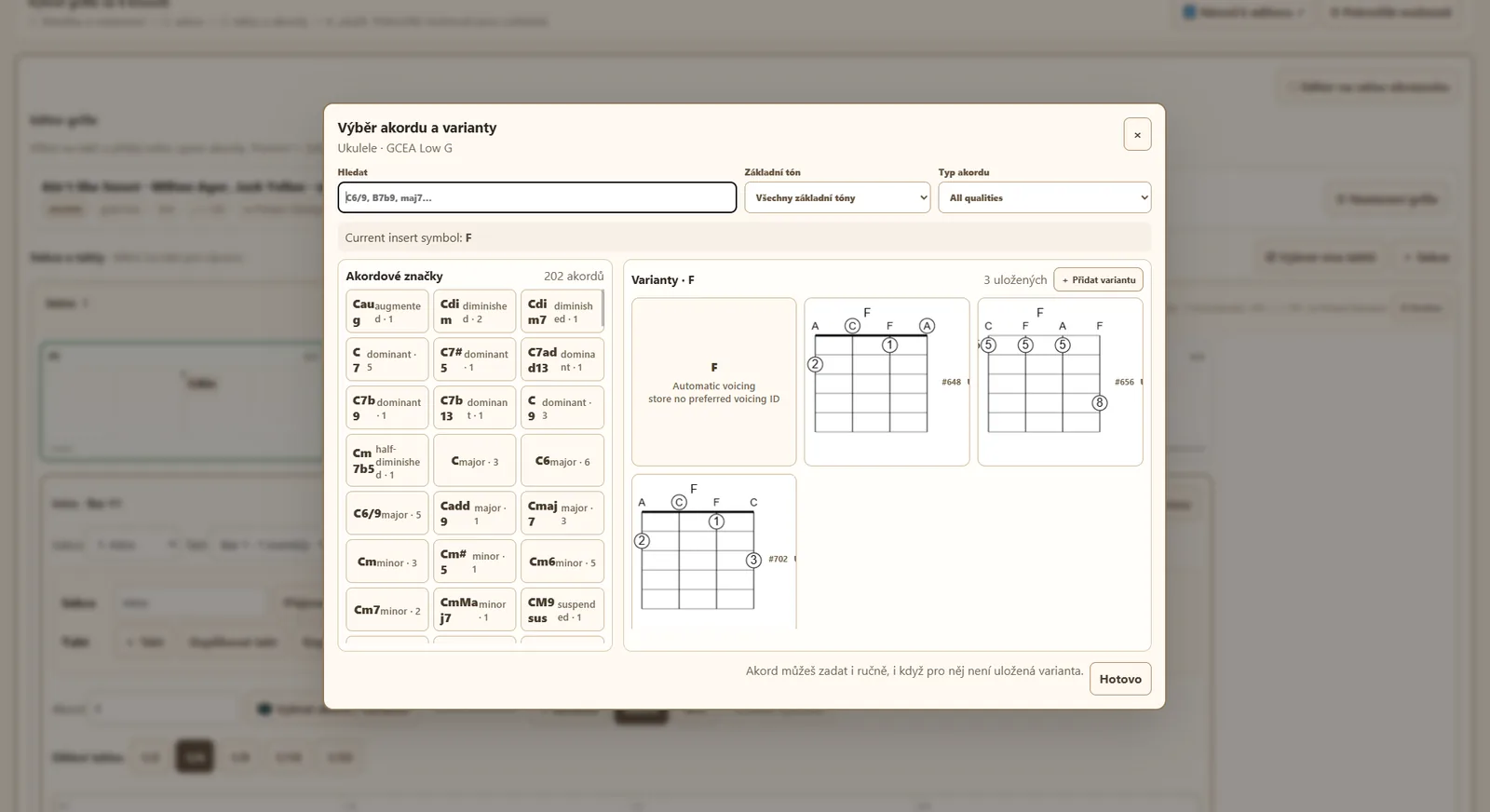
Enter the chord symbol directly or open Pick chord / voicing. There you can filter chord symbols and choose a stored shape for the selected instrument.
Override properties only where needed
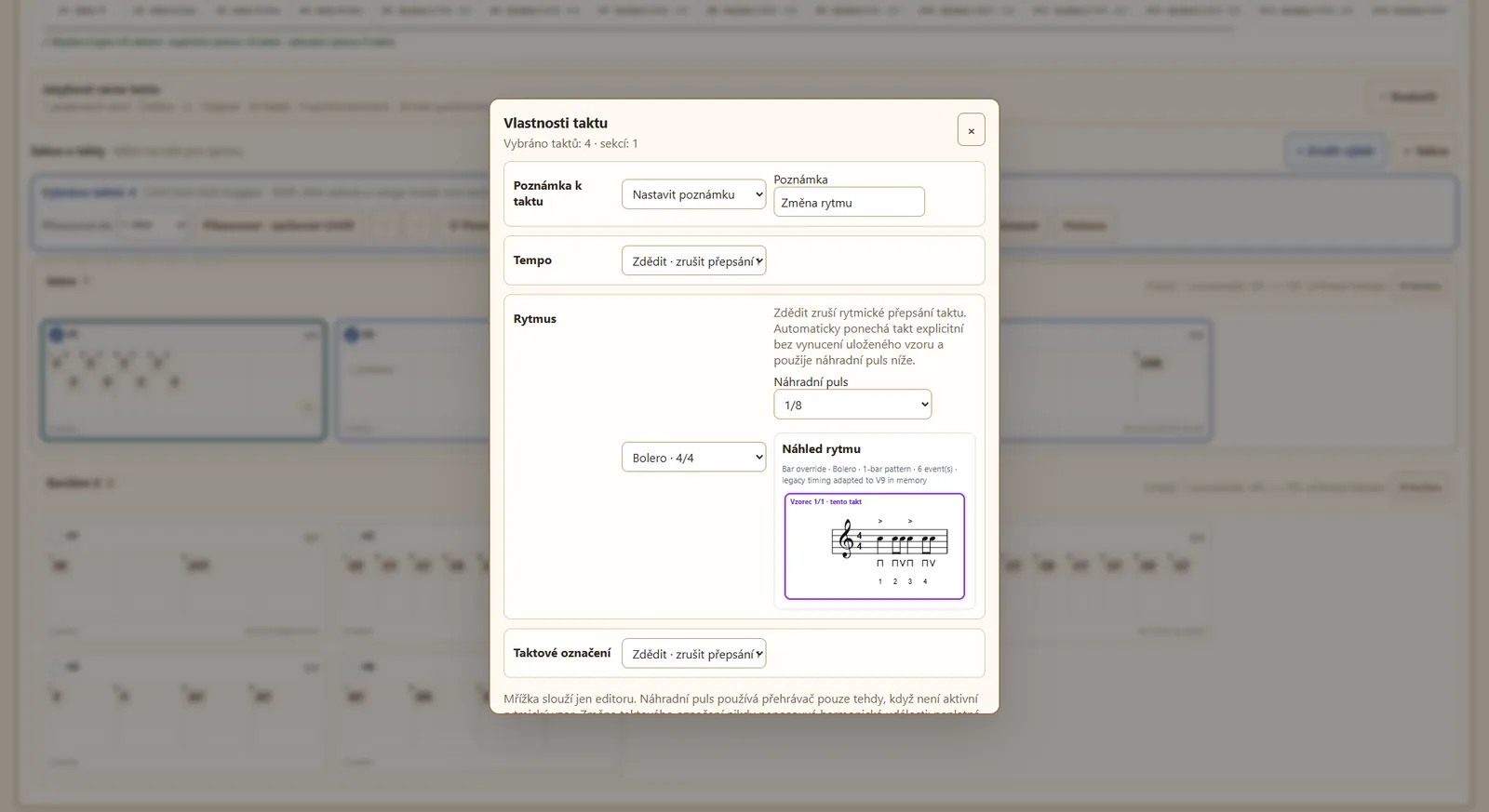
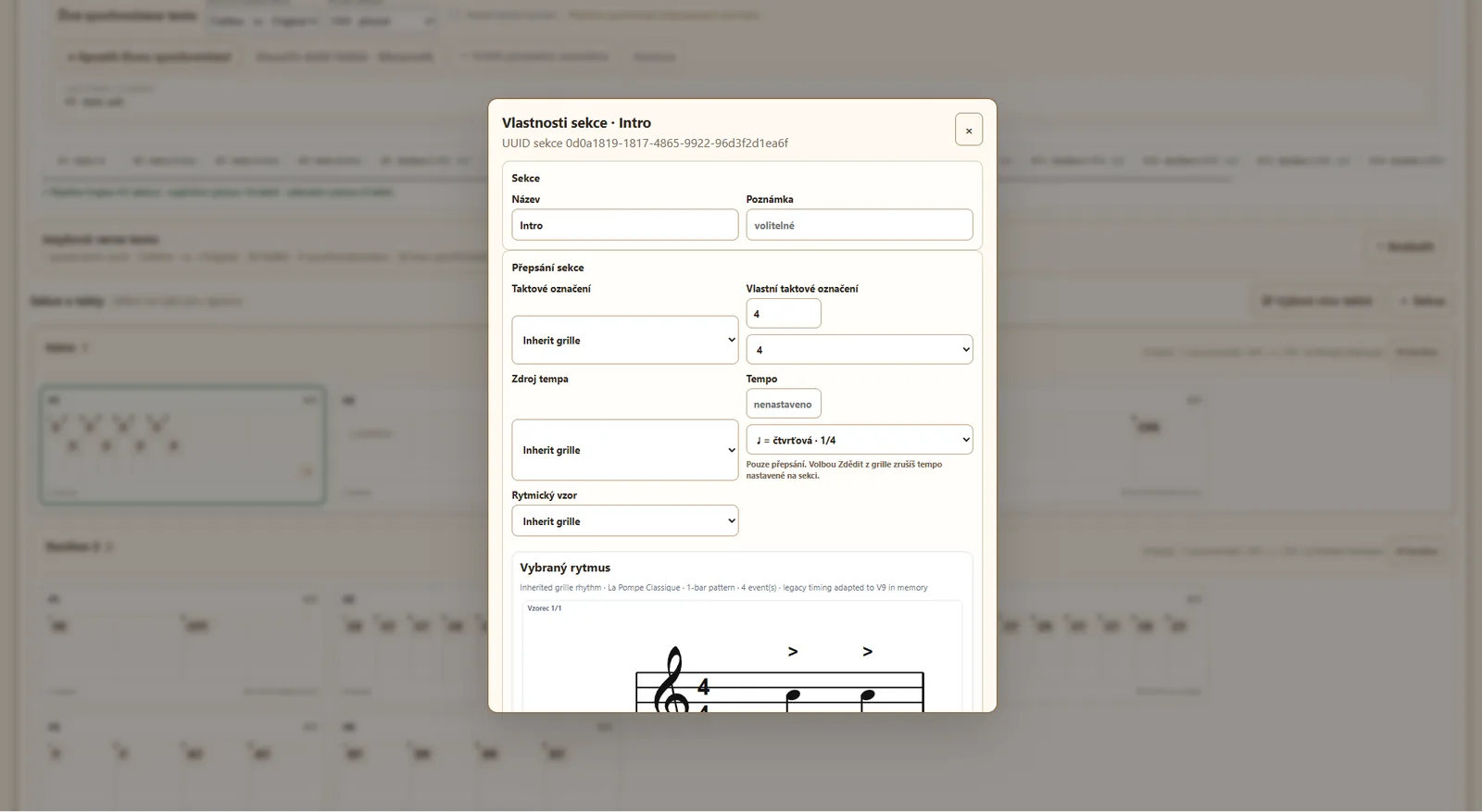
Tempo, rhythm and time signature can inherit from the grille. The same values can be overridden for an entire section or only selected bars. Use Select multiple bars for bulk changes.
Save and check the result
Click Save, then open the grille in the Viewer. Save as copy keeps the content as a new grille. Use Send for review when the grille should enter the public catalog.
⚙ Use advanced features only when needed
Arrangement supports passes and repeat groups, lyrics can have multiple language versions and independent timing, and section/bar properties can override the grille defaults.
✓ Fastest first test
Choose instrument and tuning, create one section, add a few bars, place chords, save and open the Viewer. Add rhythm overrides, repeat groups or synchronized lyrics only after the basic grille works.
Editor V2 in detail
The screenshots below show the current Editor V2 controls. Click any screenshot to open it at a larger size.
1. Grille-wide settings
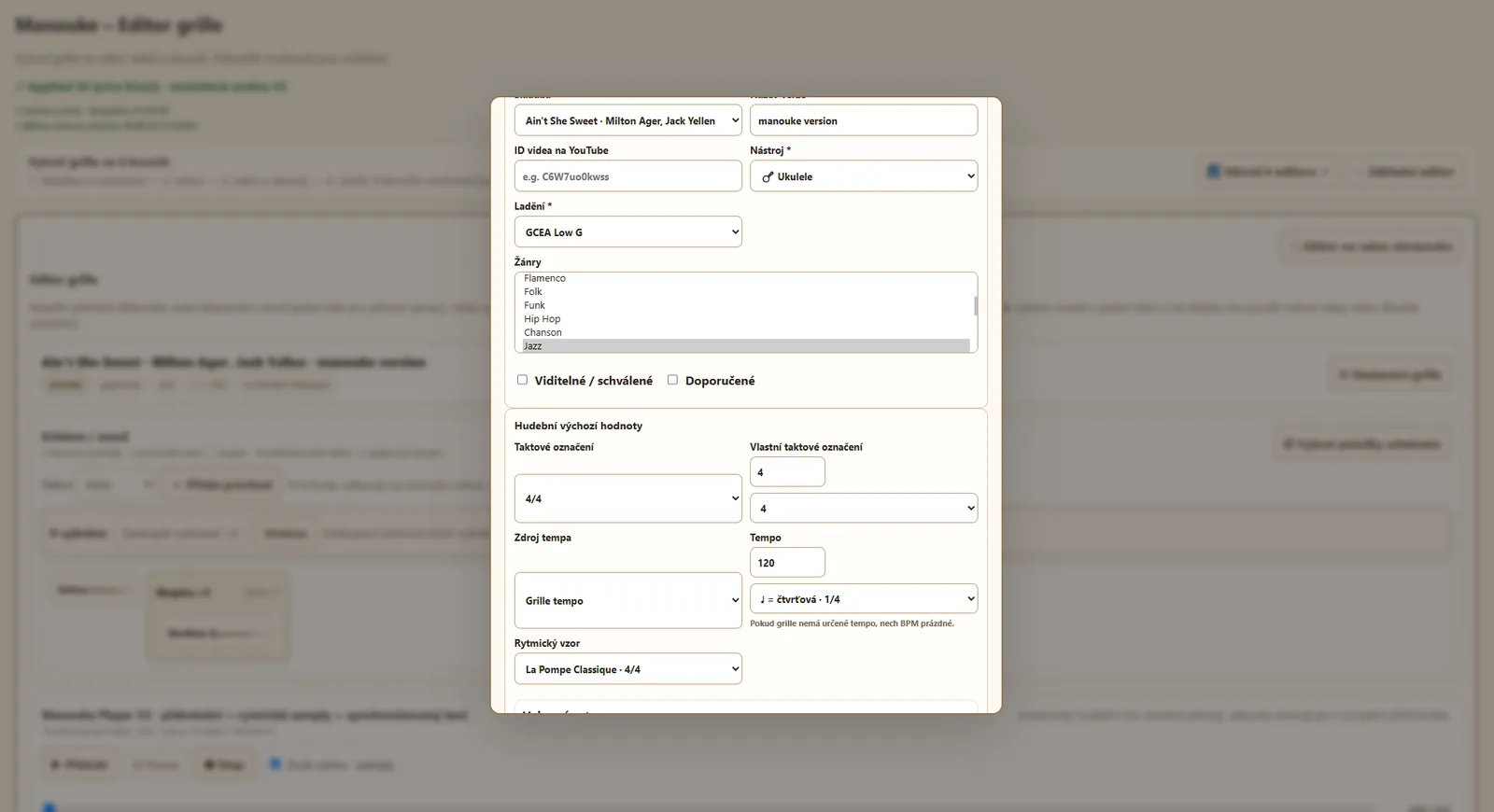
Grille settings define the metadata and musical defaults. Instrument and tuning affect the available chord variants; time signature, tempo and rhythm can then be inherited by sections and bars.
💡 For a new grille, choose instrument and tuning first. The first bar is empty and you add harmony after that.
2. Bars, grid, N.C. and voicings
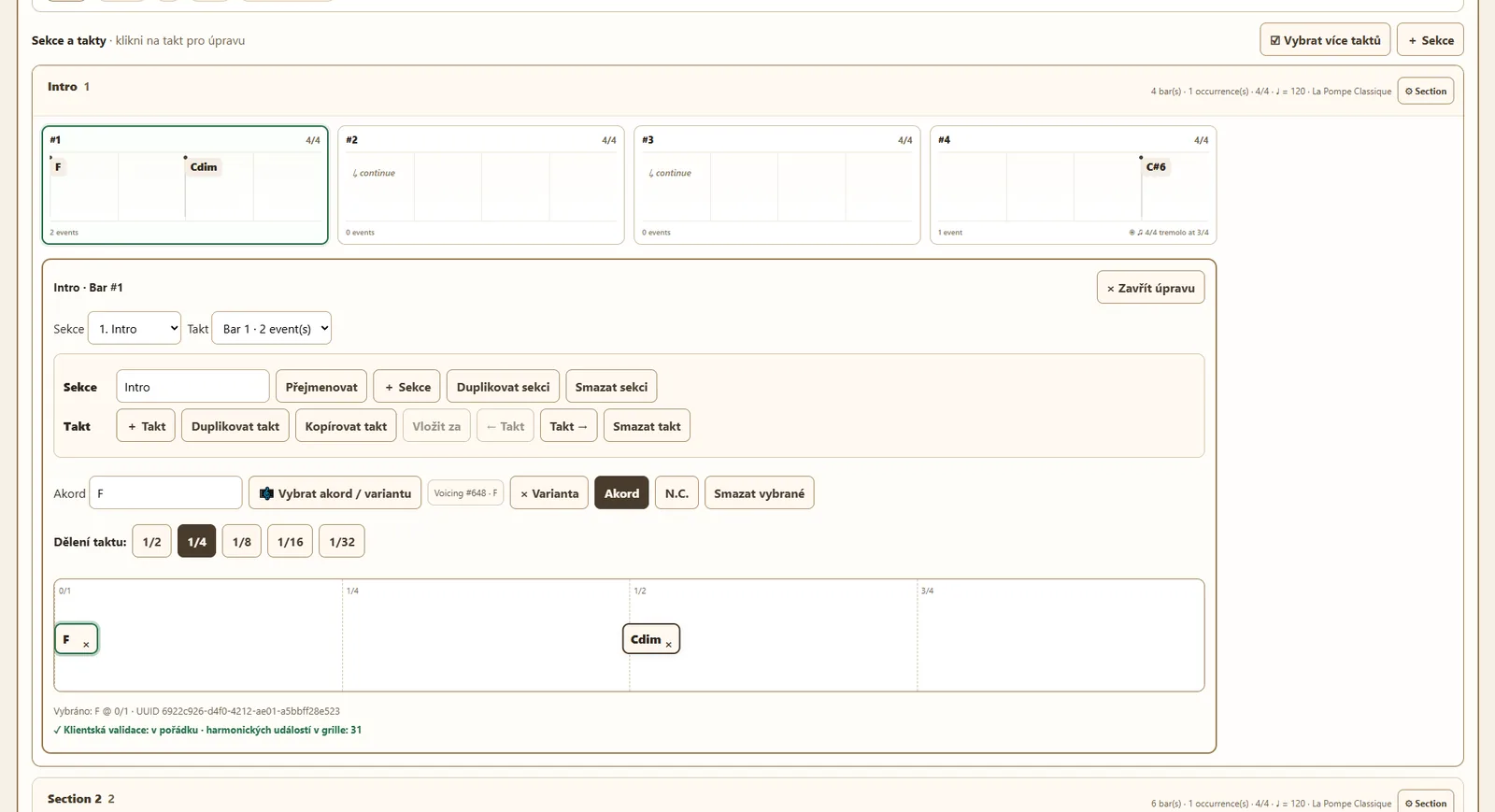
Click a bar to open its editor. Snap defines the grid used to place events. A harmony event can be a chord symbol, a specific stored voicing, or N.C. for a no-chord position.
💡 Changing Snap does not change the musical time of existing events; it mainly provides a grid for precise insertion and movement.
3. Bulk edits and property inheritance
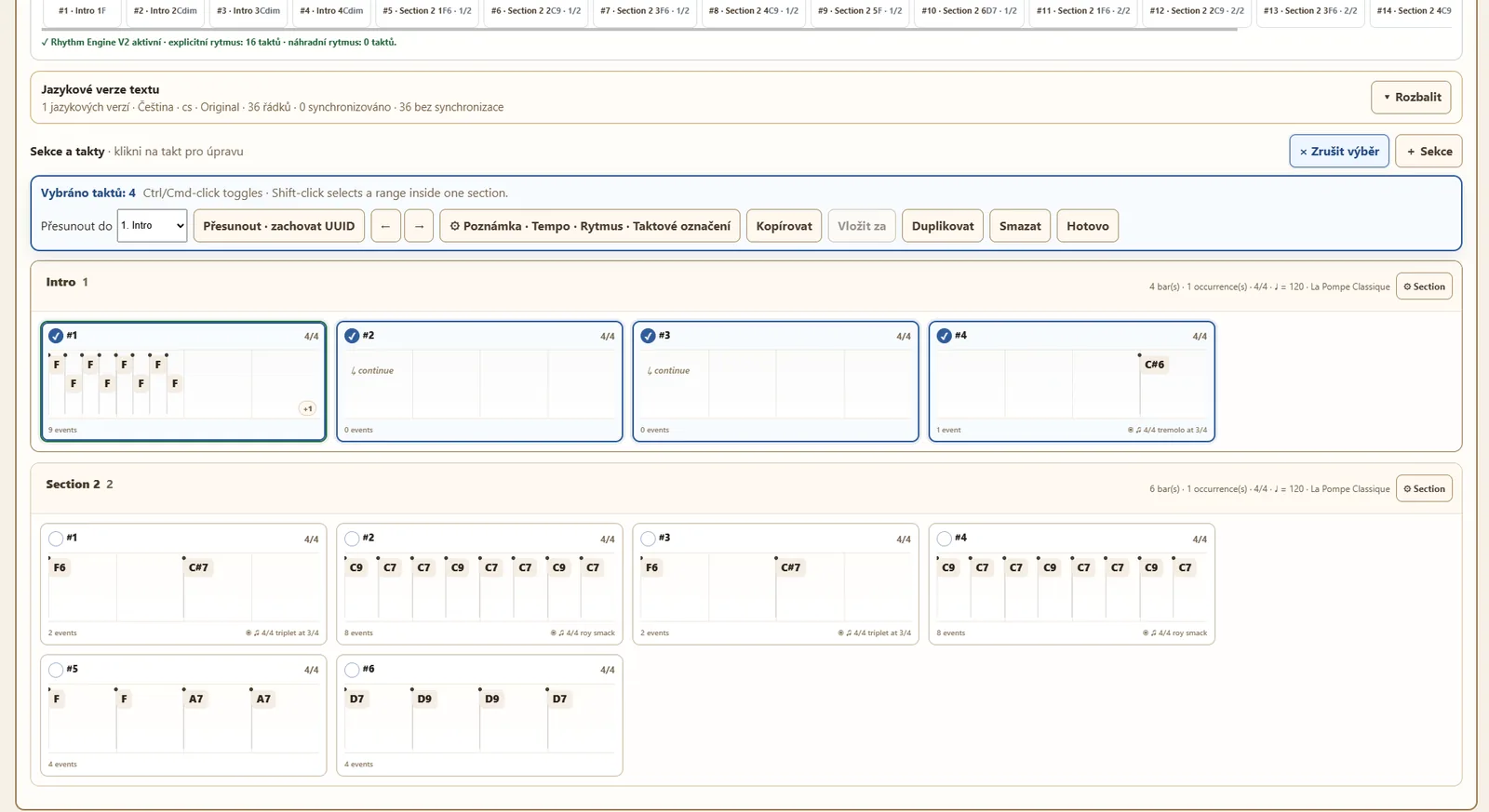
Select multiple bars lets you move, copy, duplicate, delete or change properties for several bars at once. Tempo, rhythm and time signature can be set at grille level, overridden by a section, and overridden again for an individual bar.
💡 If you do not need an override, leave the value on Inherit. This keeps the grille simpler and lets later global changes propagate automatically.
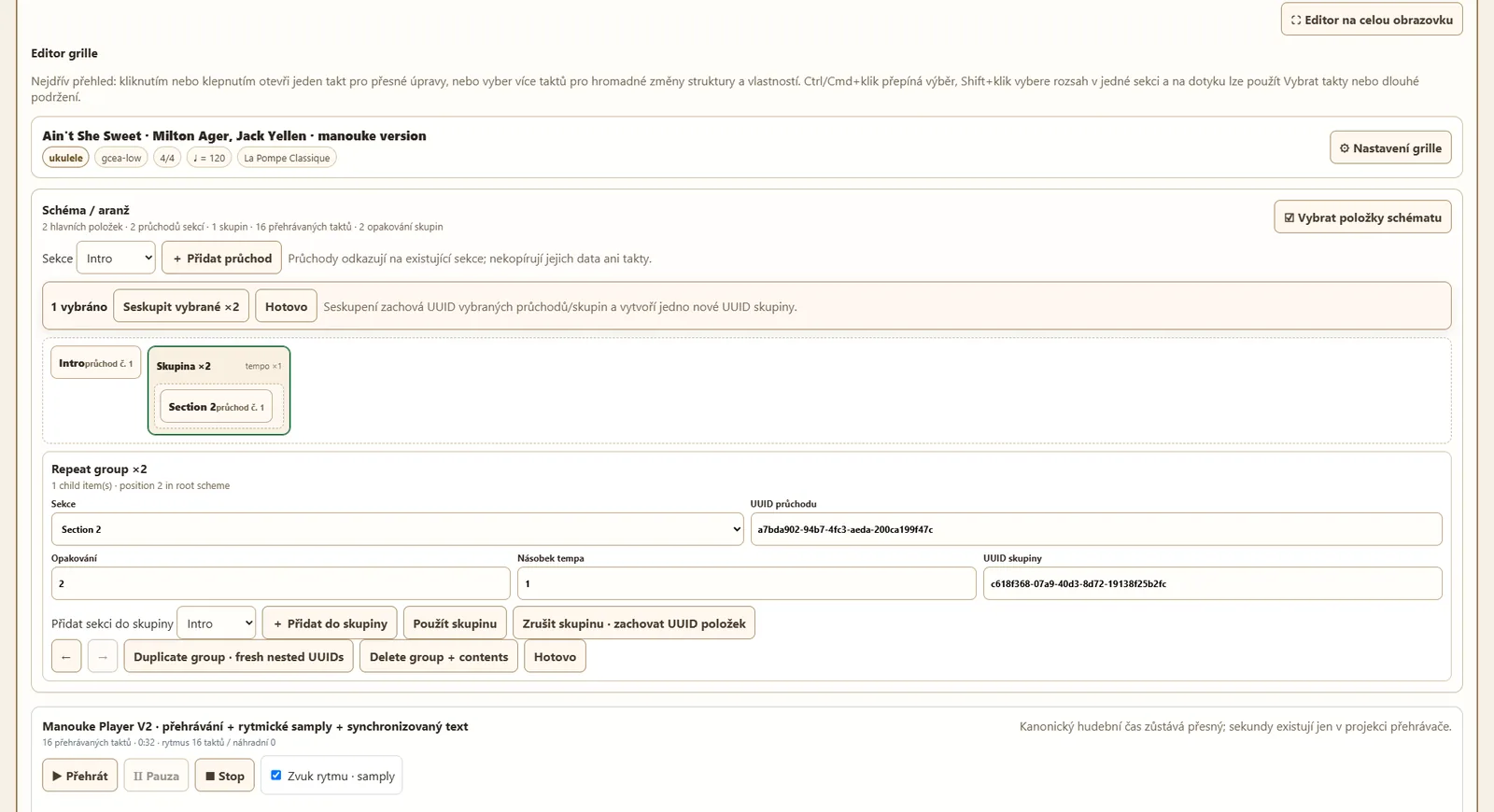
4. Arrangement, passes and repeat groups
Arrangement does not copy section content; it builds passes that reference existing sections. Selected passes can be grouped into a repeat group with a repeat count or tempo multiplier.
💡 Edit a section in one place. Arrangement passes reference it, so bar fixes automatically appear in every use of that section.
5. Lyrics, language versions and synchronization
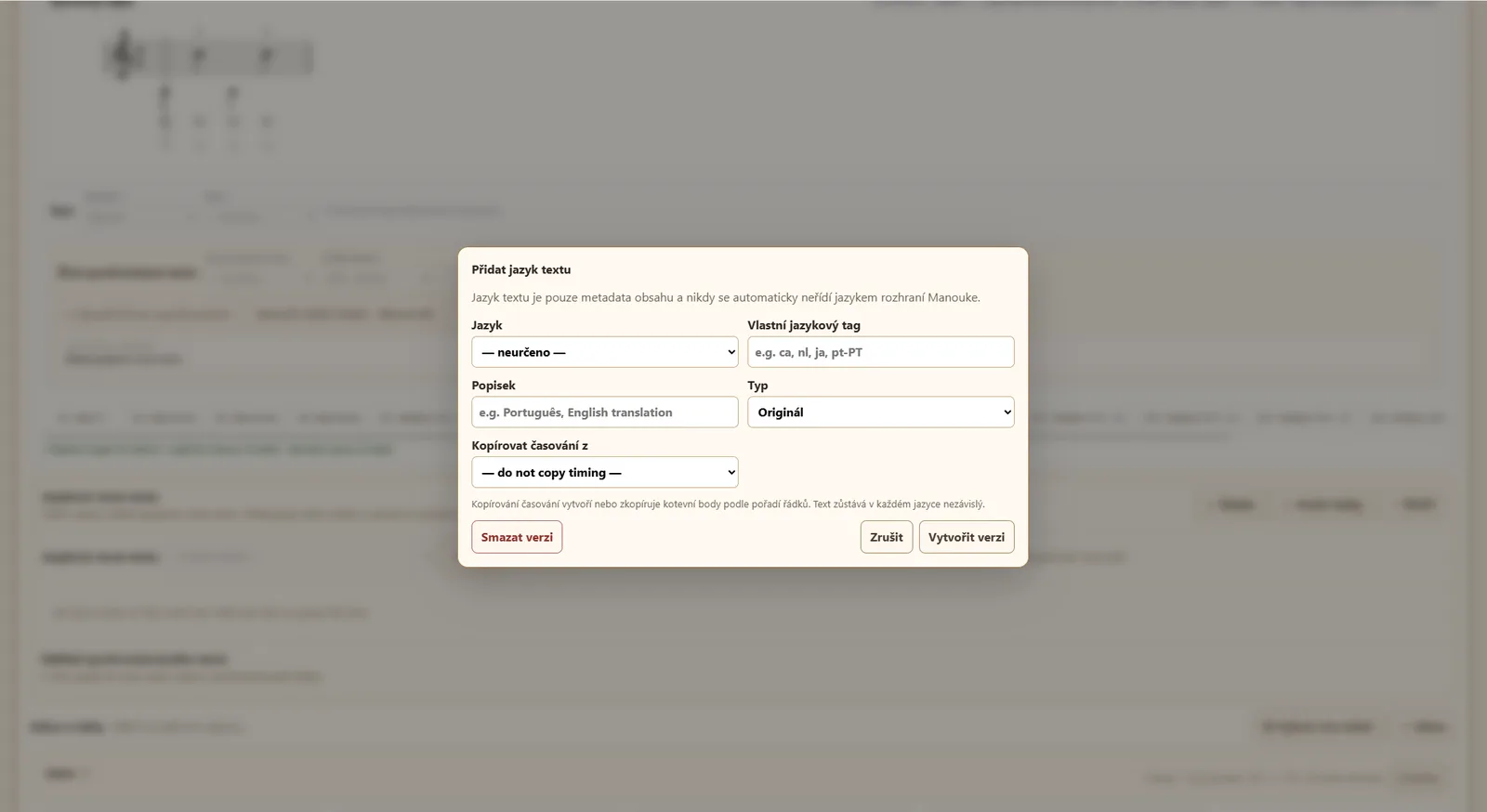
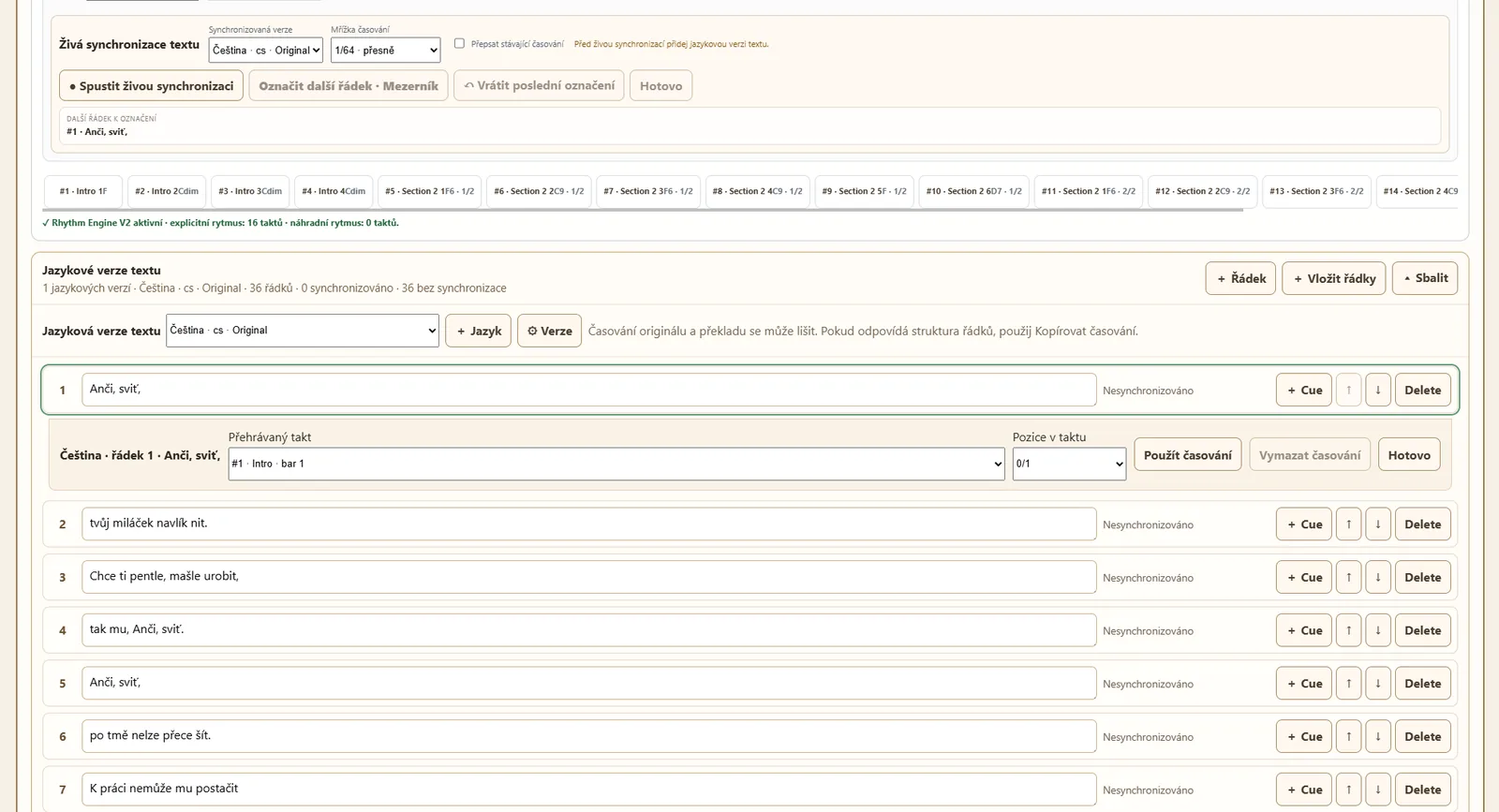
Lyrics can have multiple language versions. Each version keeps its own lines and timing; timing can be copied when another version has a matching line structure. Live synchronization stores cue positions while the grille plays.
💡 Create the language version first, then start live synchronization. Original lyrics and translations do not have to share the same timing.
6. Save, copy and verify
Save writes changes to the current grille. Save as copy creates a new grille with the same content. After saving, open the Viewer and verify harmony, rhythm, lyrics and Player behavior.
💡 The editor keeps local recovery for unsaved work. A normal reload may offer recovery; after you confirm New grille, the old local draft is intentionally discarded.